 Keylens
Hold ⌘ to see every shortcut.
Keylens reads the menus of whatever app is in front and lists all of its keyboard shortcuts in one panel. Search them by name or by keys, and press Return to run one.
Try it: hold ⌘ on your keyboard.
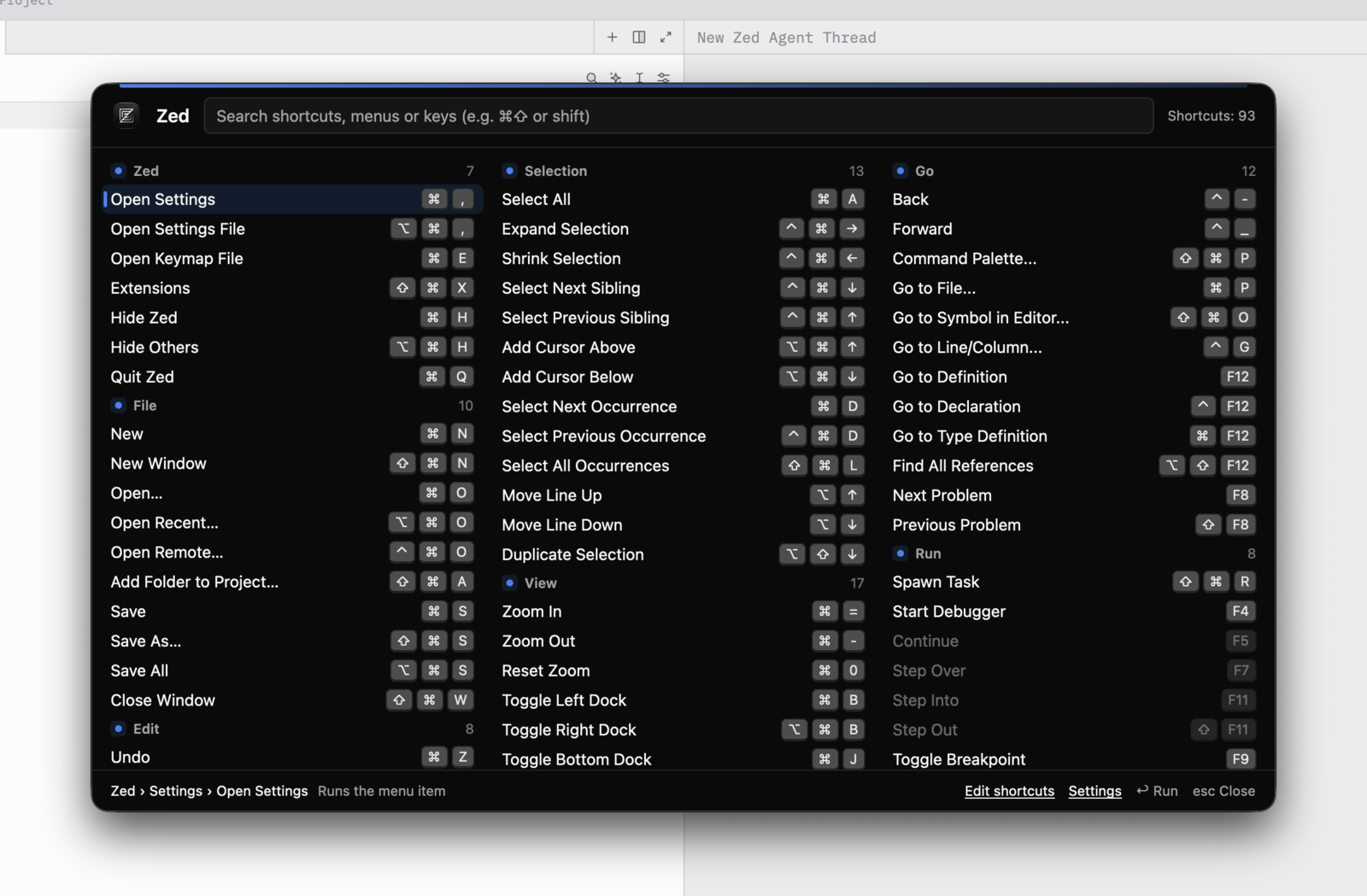
The panel over Zed. VS Code, Notion, Slack and any other app open the same way, with nothing to set up per app.
Search with the keys you remember.
Type ⌘⇧, shift or cmd+shift+p and Keylens lists everything bound to those keys, in any order, next to regular title matches.
Use the arrow keys to move. Return runs the selected item. Esc clears the search first, then closes the panel.
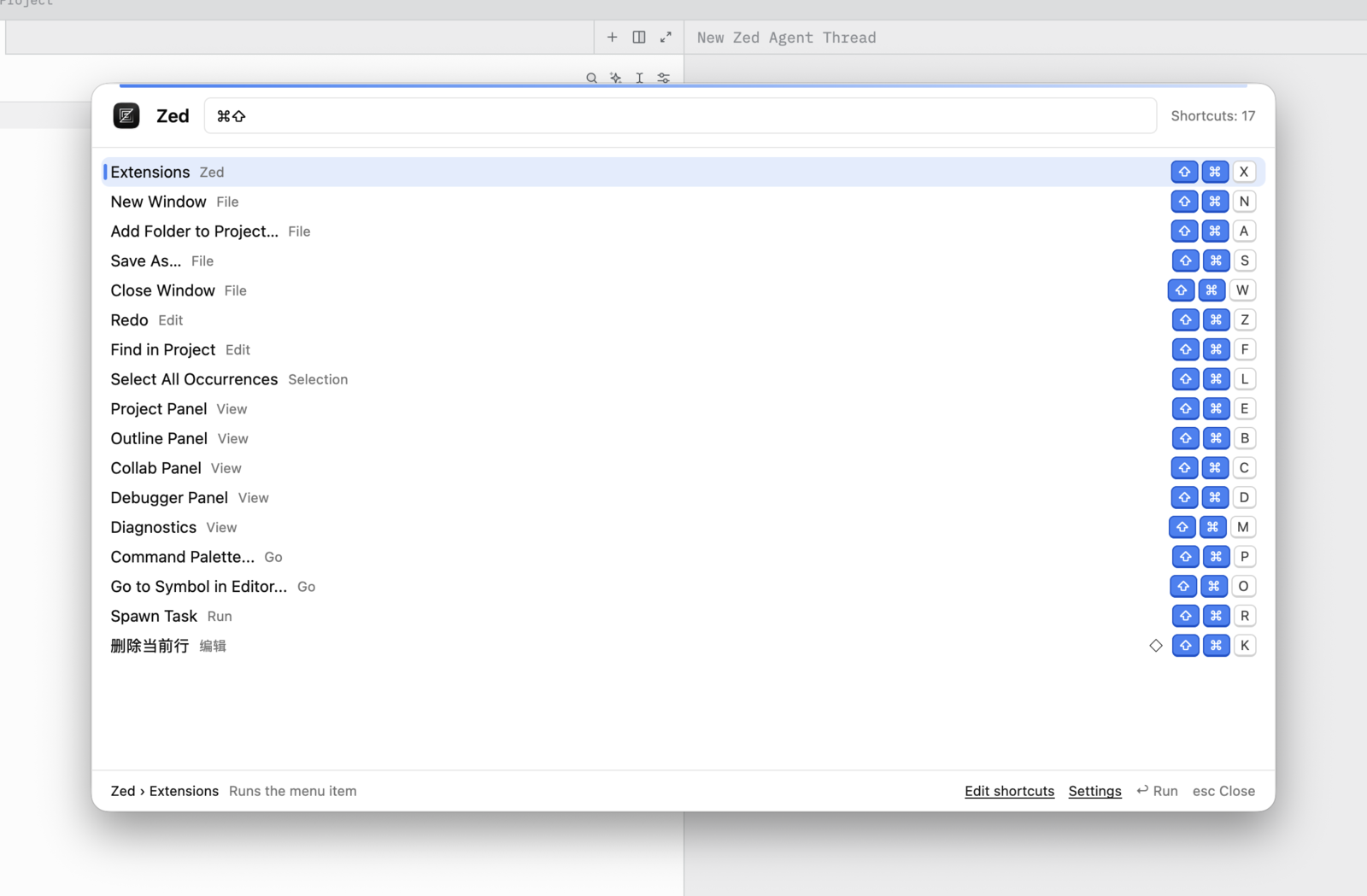
Fits in at night, too.
The panel follows the system appearance, so it looks right next to your apps in dark mode as well as in light.
Menu items run through Accessibility, exactly as if you had picked them from the menu bar.
Fills in what menus leave out
Community data adds shortcuts that VS Code, Chrome or Slack keep out of their menus, marked with ◇. Record your own by pressing the keys.
Your trigger, your timing
Hold or double-tap ⌘, ⌥, ⌃ or ⇧. Choose how long to hold and whether letting go closes the panel.
Speaks your language
English, Simplified and Traditional Chinese, and Japanese, following the system language unless you pick one.
Install
Universal build for Apple Silicon and Intel. Windows and Linux are on the roadmap.
-
Download Keylens.dmg, open it and drag Keylens into Applications. Don't run it from inside the dmg.
-
Keylens isn't notarized by Apple, so macOS blocks the first launch. Allow it either way:
- System Settings › Privacy & Security, then Open Anyway at the bottom
- or before opening the dmg, run
xattr -d com.apple.quarantine ~/Downloads/Keylens.dmg
-
Turn on Keylens under System Settings › Privacy & Security › Accessibility. It works right away, no restart needed.
Keylens checks for updates once a day, then downloads, installs and restarts when you say yes. Updates keep the Accessibility permission.
Change it in Settings, or in a file.
Open Settings from the ⌘ icon in the menu bar, or press ⌘, while the panel is open. Changes apply immediately.
Everything is saved to ~/.config/keylens/config.toml. Edits by hand take effect within two seconds, and your comments are kept.
# zh-CN, zh-TW, zh-HK, en, ja
language = "en"

[trigger]
mode = "hold"            # hold | double-tap
key = "cmd"             # cmd, option, ctrl, shift
hold-ms = 800           # 300–2000
double-tap-ms = 350     # 200–600
hide-on-release = false
hold-animation = true

[update]
auto-check = true